# Deploying Kafka Cluster
> A guide to deploying Kafka cluster on Kubernetes using Helm Chart, including installation, verification, and monitoring integration steps.
# Deploying Kafka Cluster
In this guide, you will learn how to deploy a Kafka cluster on Kubernetes using a Helm Chart.
## Prerequisites
- Kubernetes >= v1.18.0
- [kubectl](https://kubernetes.io/docs/tasks/tools/install-kubectl/) >= v1.18.0
- [Helm](https://helm.sh/docs/intro/install/) >= v3.0.0
## Configuration Management
Before installation, you need to create a configuration file for the Kafka cluster. Please adjust the following `kafka-values.yaml` reference configuration according to your Kubernetes environment:
```yaml
image:
registry: docker.io
repository: greptime/kafka
tag: 3.9.0-debian-12-r1
listeners:
client:
containerPort: 9092
protocol: PLAINTEXT
name: CLIENT
controller:
protocol: PLAINTEXT
heapOpts: "-Xmx512m -Xms512m -XX:MetaspaceSize=96m -XX:+UseG1GC -XX:MaxGCPauseMillis=20 -XX:InitiatingHeapOccupancyPercent=35 -XX:G1HeapRegionSize=16M -XX:MinMetaspaceFreeRatio=50 -XX:MaxMetaspaceFreeRatio=80 -XX:+ExplicitGCInvokesConcurrent"
controller:
replicaCount: 3
resources:
limits:
cpu: '1'
memory: 1Gi
requests:
cpu: 500m
memory: 512Mi
persistence:
enabled: true
storageClass: ""
size: 50Gi
broker:
replicaCount: 3
resources:
limits:
cpu: '1'
memory: 1Gi
requests:
cpu: 500m
memory: 512Mi
persistence:
enabled: true
storageClass: ""
size: 50Gi
extraConfig: |
num.network.threads=3
num.io.threads=8
min.insync.replicas=1
socket.send.buffer.bytes=102400
socket.receive.buffer.bytes=102400
socket.request.max.bytes=104857600
num.recovery.threads.per.data.dir=1
offsets.topic.replication.factor=1
transaction.state.log.replication.factor=1
transaction.state.log.min.isr=1
allow.everyone.if.no.acl.found=true
auto.create.topics.enable=true
default.replication.factor=1
max.partition.fetch.bytes=1048576
max.request.size=1048576
message.max.bytes=20000000
log.dirs=/bitnami/kafka/data
log.flush.interval.messages=10000
log.flush.interval.ms=1000
log.retention.hours=4
log.roll.hours=3
log.retention.bytes=250000000
log.segment.bytes=1073741824
```
## Installing Kafka Cluster
Install the Kafka cluster in the kafka namespace:
```bash
helm upgrade --install kafka \
--create-namespace \
oci://registry-1.docker.io/bitnamicharts/kafka \
--version 31.0.0 \
-n kafka --values kafka-values.yaml
```
Expected Output
```bash
Release "kafka" does not exist. Installing it now.
Pulled: greptime-registry.cn-hangzhou.cr.aliyuncs.com/charts/kafka:31.0.0
Digest: sha256:85b135981fd5d951ceef8b51cdcbc6917ebface50d0eb3367eb7ddc4a5db482b
NAME: kafka
LAST DEPLOYED: Tue May 12 00:57:32 2026
NAMESPACE: kafka
STATUS: deployed
REVISION: 1
TEST SUITE: None
NOTES:
CHART NAME: kafka
CHART VERSION: 31.0.0
APP VERSION: 3.9.0
** Please be patient while the chart is being deployed **
Kafka can be accessed by consumers via port 9092 on the following DNS name from within your cluster:
kafka.kafka.svc.cluster.local
Each Kafka broker can be accessed by producers via port 9092 on the following DNS name(s) from within your cluster:
kafka-controller-0.kafka-controller-headless.kafka.svc.cluster.local:9092
kafka-broker-0.kafka-broker-headless.kafka.svc.cluster.local:9092
To create a pod that you can use as a Kafka client run the following commands:
kubectl run kafka-client --restart='Never' --image greptime-registry.cn-hangzhou.cr.aliyuncs.com/greptime/kafka:3.9.0-debian-12-r1 --namespace kafka --command -- sleep infinity
kubectl exec --tty -i kafka-client --namespace kafka -- bash
PRODUCER:
kafka-console-producer.sh \
--bootstrap-server kafka.kafka.svc.cluster.local:9092 \
--topic test
CONSUMER:
kafka-console-consumer.sh \
--bootstrap-server kafka.kafka.svc.cluster.local:9092 \
--topic test \
--from-beginning
Substituted images detected:
- greptime-registry.cn-hangzhou.cr.aliyuncs.com/greptime/kafka:3.9.0-debian-12-r1
```
## Verifying Kafka Cluster Installation
Check the status of Kafka components (Broker and Controller):
```bash
kubectl get pod -n kafka
```
Expected Output
```bash
NAME READY STATUS RESTARTS AGE
kafka-broker-0 1/1 Running 0 8m3s
kafka-broker-1 1/1 Running 0 8m2s
kafka-broker-2 1/1 Running 0 8m1s
kafka-controller-0 1/1 Running 0 8m3s
kafka-controller-1 1/1 Running 0 8m2s
kafka-controller-0 1/1 Running 0 8m1s
```
# Configuring Kafka Endpoints
After the Kafka cluster is deployed, GreptimeDB can enable Remote WAL by configuring Kafka endpoints. For more information, refer to [this documentation](/user-guide/deployments-administration/deploy-on-kubernetes/configure-remote-wal.md).
```yaml
remoteWal:
enabled: true
kafka:
brokerEndpoints:
- "kafka-broker-0.kafka-broker-headless.kafka.svc.cluster.local:9092"
- "kafka-broker-1.kafka-broker-headless.kafka.svc.cluster.local:9092"
- "kafka-broker-2.kafka-broker-headless.kafka.svc.cluster.local:9092"
```
# Monitoring
- Install Prometheus Operator (eg: [kube-prometheus-stack](https://github.com/prometheus-community/helm-charts/tree/main/charts/kube-prometheus-stack))。
- Install the servicemonitor CRD。
To monitor the Kafka cluster, you need to have a monitoring system (such as Prometheus and Grafana) deployed in advance. Then add the following content to `kafka-values.yaml` and re-run the command to update the Kafka configuration:
```yaml
metrics:
jmx:
enabled: true
image:
registry: greptime-registry.cn-hangzhou.cr.aliyuncs.com
repository: greptime/jmx-exporter
tag: 1.0.1-debian-12-r9
serviceMonitor:
enabled: true
namespace: "kafka"
interval: "10s"
labels:
release: kube-prometheus-stack
```
## Grafana dashboard
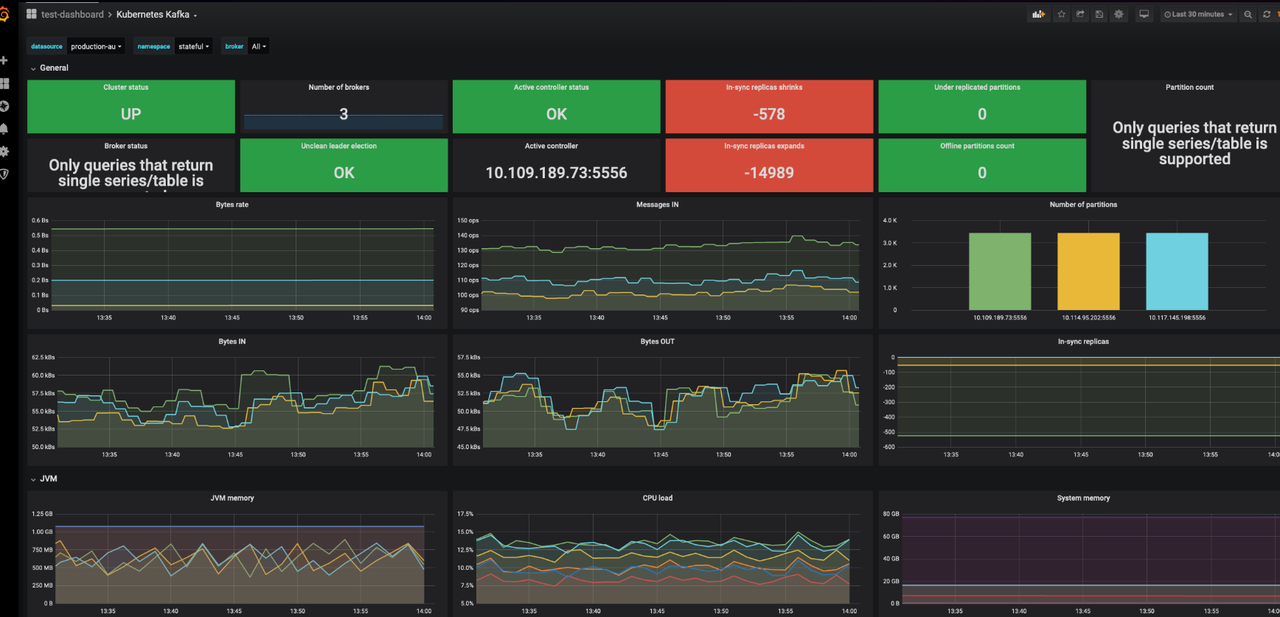
Use [Kubernetes Kafka](https://grafana.com/grafana/dashboards/12483-kubernetes-kafka/) (ID: 12483) to monitor Kafka metrics.
1. Log in to your Grafana.
2. Navigate to Dashboards -> New -> Import.
3. Enter Dashboard ID: 12483, select a data source and load the dashboard.
# Uninstalling Kafka Cluster
Use the following command to uninstall the Kafka cluster:
```bash
helm -n kafka uninstall kafka
```
## Deleting PVCs
Deleting PVCs will remove persistent data from the Kafka cluster. Please ensure you have backed up your data before proceeding.
```bash
kubectl -n kafka delete pvc -l app.kubernetes.io/instance=kafka
```