Deploying Kafka Cluster
In this guide, you will learn how to deploy a Kafka cluster on Kubernetes using a Helm Chart.
Prerequisites
Configuration Management
Before installation, you need to create a configuration file for the Kafka cluster. Please adjust the following kafka-values.yaml reference configuration according to your Kubernetes environment:
image:
  registry: docker.io
  repository: greptime/kafka
  tag: 3.9.0-debian-12-r1

listeners:
  client:
    containerPort: 9092
    protocol: PLAINTEXT
    name: CLIENT
  controller:
    protocol: PLAINTEXT

heapOpts: "-Xmx512m -Xms512m -XX:MetaspaceSize=96m -XX:+UseG1GC -XX:MaxGCPauseMillis=20 -XX:InitiatingHeapOccupancyPercent=35 -XX:G1HeapRegionSize=16M -XX:MinMetaspaceFreeRatio=50 -XX:MaxMetaspaceFreeRatio=80 -XX:+ExplicitGCInvokesConcurrent"

controller:
  replicaCount: 3
  resources:
    limits:
      cpu: '1'
      memory: 1Gi
    requests:
      cpu: 500m
      memory: 512Mi
  persistence:
    enabled: true
    storageClass: ""
    size: 50Gi

broker:
  replicaCount: 3
  resources:
    limits:
      cpu: '1'
      memory: 1Gi
    requests:
      cpu: 500m
      memory: 512Mi
  persistence:
    enabled: true
    storageClass: ""
    size: 50Gi

extraConfig: |
  num.network.threads=3
  num.io.threads=8
  min.insync.replicas=1
  socket.send.buffer.bytes=102400
  socket.receive.buffer.bytes=102400
  socket.request.max.bytes=104857600
  num.recovery.threads.per.data.dir=1
  offsets.topic.replication.factor=1
  transaction.state.log.replication.factor=1
  transaction.state.log.min.isr=1
  allow.everyone.if.no.acl.found=true
  auto.create.topics.enable=true
  default.replication.factor=1
  max.partition.fetch.bytes=1048576
  max.request.size=1048576
  message.max.bytes=20000000
  log.dirs=/bitnami/kafka/data
  log.flush.interval.messages=10000
  log.flush.interval.ms=1000
  log.retention.hours=4
  log.roll.hours=3
  log.segment.bytes=1073741824
log.retention.hours=4 is a testing value. Kafka deletes a segment as soon as
any retention condition matches, so a retention window shorter than your longest
flush, failure, or manual-recovery window can remove WAL that GreptimeDB has not
replayed yet.
Do not add a size-based retention such as log.retention.bytes to topics used
for Remote WAL. See Required Settings and
Limitations
for the full set of constraints.
Installing Kafka Cluster
Install the Kafka cluster in the kafka namespace:
helm upgrade --install kafka \
  --create-namespace \
  oci://registry-1.docker.io/bitnamicharts/kafka \
  --version 31.0.0 \
  -n kafka --values kafka-values.yaml
Expected Output
Release "kafka" does not exist. Installing it now.
Pulled: greptime-registry.cn-hangzhou.cr.aliyuncs.com/charts/kafka:31.0.0
Digest: sha256:85b135981fd5d951ceef8b51cdcbc6917ebface50d0eb3367eb7ddc4a5db482b
NAME: kafka
LAST DEPLOYED: Tue May 12 00:57:32 2026
NAMESPACE: kafka
STATUS: deployed
REVISION: 1
TEST SUITE: None
NOTES:
CHART NAME: kafka
CHART VERSION: 31.0.0
APP VERSION: 3.9.0

** Please be patient while the chart is being deployed **

Kafka can be accessed by consumers via port 9092 on the following DNS name from within your cluster:

    kafka.kafka.svc.cluster.local

Each Kafka broker can be accessed by producers via port 9092 on the following DNS name(s) from within your cluster:

    kafka-controller-0.kafka-controller-headless.kafka.svc.cluster.local:9092
    kafka-broker-0.kafka-broker-headless.kafka.svc.cluster.local:9092

To create a pod that you can use as a Kafka client run the following commands:

    kubectl run kafka-client --restart='Never' --image greptime-registry.cn-hangzhou.cr.aliyuncs.com/greptime/kafka:3.9.0-debian-12-r1 --namespace kafka --command -- sleep infinity
    kubectl exec --tty -i kafka-client --namespace kafka -- bash

    PRODUCER:
        kafka-console-producer.sh \
            --bootstrap-server kafka.kafka.svc.cluster.local:9092 \
            --topic test

    CONSUMER:
        kafka-console-consumer.sh \
            --bootstrap-server kafka.kafka.svc.cluster.local:9092 \
            --topic test \
            --from-beginning

Substituted images detected:
- greptime-registry.cn-hangzhou.cr.aliyuncs.com/greptime/kafka:3.9.0-debian-12-r1
Verifying Kafka Cluster Installation
Check the status of Kafka components (Broker and Controller):
kubectl get pod -n kafka
Expected Output
NAME                 READY   STATUS    RESTARTS   AGE
kafka-broker-0       1/1     Running   0          8m3s
kafka-broker-1       1/1     Running   0          8m2s
kafka-broker-2       1/1     Running   0          8m1s
kafka-controller-0   1/1     Running   0          8m3s
kafka-controller-1   1/1     Running   0          8m2s
kafka-controller-2   1/1     Running   0          8m1s
Configuring Kafka Endpoints
After the Kafka cluster is deployed, GreptimeDB can enable Remote WAL by configuring Kafka endpoints. For more information, refer to this documentation.
remoteWal:
  enabled: true
  kafka:
    brokerEndpoints:
      - "kafka-broker-0.kafka-broker-headless.kafka.svc.cluster.local:9092"
      - "kafka-broker-1.kafka-broker-headless.kafka.svc.cluster.local:9092"
      - "kafka-broker-2.kafka-broker-headless.kafka.svc.cluster.local:9092"
Monitoring
- Install Prometheus Operator (eg: kube-prometheus-stack)。
- Install the servicemonitor CRD。
To monitor the Kafka cluster, you need to have a monitoring system (such as Prometheus and Grafana) deployed in advance. Then add the following content to kafka-values.yaml and re-run the command to update the Kafka configuration:
metrics:
  jmx:
    enabled: true
    image:
      registry: greptime-registry.cn-hangzhou.cr.aliyuncs.com
      repository: greptime/jmx-exporter
      tag: 1.0.1-debian-12-r9
  serviceMonitor:
    enabled: true
    namespace: "kafka"
    interval: "10s"
    labels:
      release: kube-prometheus-stack
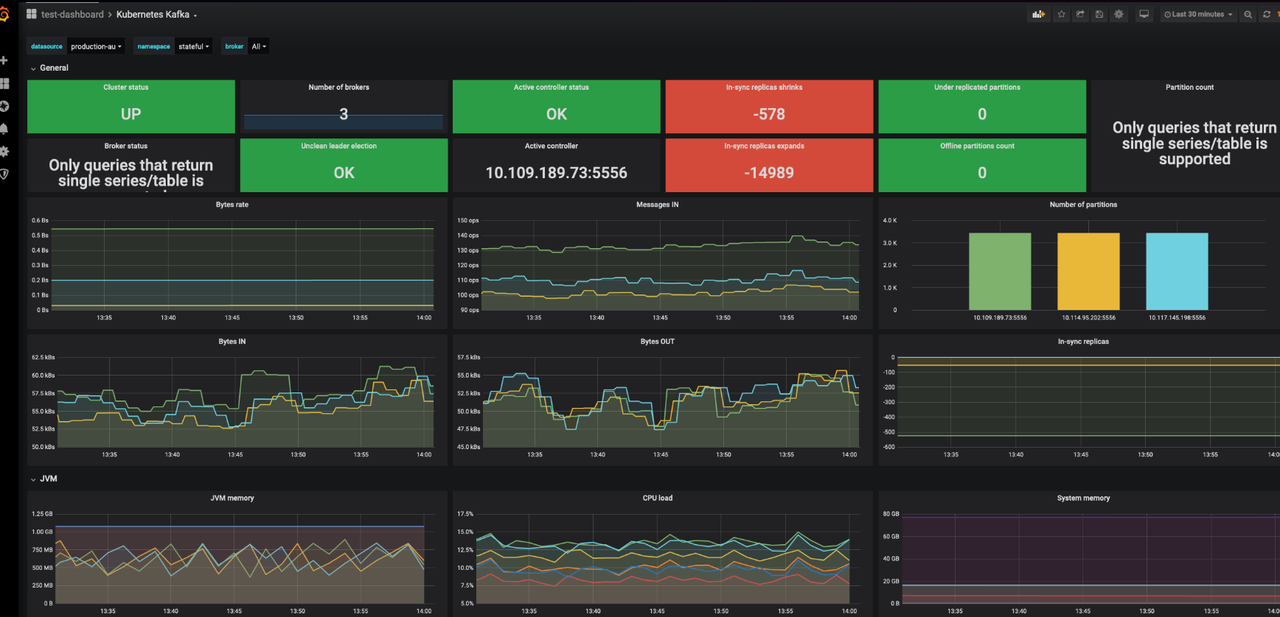
Grafana dashboard
Use Kubernetes Kafka (ID: 12483) to monitor Kafka metrics.
- Log in to your Grafana.
- Navigate to Dashboards -> New -> Import.
- Enter Dashboard ID: 12483, select a data source and load the dashboard.
Uninstalling Kafka Cluster
Use the following command to uninstall the Kafka cluster:
helm -n kafka uninstall kafka
Deleting PVCs
Deleting PVCs will remove persistent data from the Kafka cluster. Please ensure you have backed up your data before proceeding.
kubectl -n kafka delete pvc -l app.kubernetes.io/instance=kafka