SSO Authentication
Use Okta single sign-on (SSO) to access the GreptimeDB Enterprise Dashboard. Users sign in with their Okta accounts; database access is controlled by GreptimeDB privileges and ACLs. Password login remains available alongside SSO.
These instructions apply to Nightly. Use GreptimeDB Enterprise and Dashboard builds that support SSO; older builds may not support this configuration.
Prerequisites
- Enable the built-in enterprise user provider,
greptime_ee_user_provider, on the standalone server or every serving Frontend. Do not use an LDAP or static user provider for this setup. - Use an SSO-capable Dashboard and, if deployed, a dashboard-apiserver that supports Bearer authentication.
- Serve the Dashboard over HTTPS. Both the browser and GreptimeDB must be able to access Okta over HTTPS with trusted certificates.
- Have permission to create an Okta application and assign users or groups.
Configure Okta
Create an OIDC Single-Page Application with the following settings:
| Setting | Value |
|---|---|
| Grant type | Authorization Code + PKCE. |
| Client authentication | None, under General → Client Credentials. Do not configure a client secret. |
| Issuer | Your org URL, such as https://your-org.okta.com, not /oauth2/default. |
| Client ID | Copy the application's OAuth client ID. |
| Sign-in redirect URI | <Dashboard origin>/dashboard/auth/callback. Match scheme, hostname, port, and path exactly. |
| Sign-out redirect URI | <Dashboard origin>/dashboard/auth/login. Configure Trusted Origins as required. |
| Username mapping | Keep the app's native userName mapping. Adjust App Profile Mapping if needed. |
| Assignments | Only users or groups allowed to access the database. |
For example, a Dashboard at https://dashboard.example.com/dashboard/ uses
https://dashboard.example.com/dashboard/auth/callback as its sign-in redirect
URI.
No custom Authorization Server, custom claim, or JWKS URL is needed for this setup. See Okta's OIDC application settings for details.
Configure GreptimeDB
Add the following to the standalone or Frontend configuration, replacing the issuer and client ID with your application values:
user_provider = "greptime_ee_user_provider:"

[[plugins]]
jwt_auth.issuer = "https://your-org.okta.com"
jwt_auth.client_id = "your-oidc-app-client-id"
- Place the top-level
user_providerbefore any TOML tables, such as[http]or[[plugins]]. Keep the trailing:; it enables the provider without an account-seeding file and does not remove existing users. - Configure only one
jwt_authplugin per process. For this setup, do not addsecret,public_key,jwks_url,jwks_ca_cert_path,audience,algorithm, or JWKS refresh options. - In a cluster, configure every serving Frontend, not Metasrv or Datanode. In standalone mode, configure the standalone process.
- If your deployment already enables the provider through an environment variable or startup option, avoid conflicting settings.
Restart the affected processes or roll out the Frontend changes, and confirm that every replica is ready. Updating a ConfigMap alone does not reload the configuration.
Optional Settings and Defaults
Add optional settings to the same [[plugins]] entry:
| Option | Default | Usage |
|---|---|---|
jwt_auth.username_claim | "preferred_username" | Username field supplied by Okta. Keep the default for the app's native username mapping. |
jwt_auth.scopes | ["openid", "profile", "email"] | Requested login scopes; must include openid. |
jwt_auth.display_name | "SSO" | Name displayed on the login button, for example "Okta". |
jwt_auth.auto_provision | false | Create missing users on first SSO login. |
jwt_auth.auto_provision_privileges | [] | Initial privileges for new users; required when provisioning is enabled and must not include Admin. |
jwt_auth.auto_provision_databases | [] | Databases new users can access; required when provisioning is enabled. |
Database Users and Permissions
By default, create each user through the User Management API
before their first login. Use the Okta application's username
(preferred_username) as the database username. Email-shaped names must be
lowercase; other names are case-sensitive. See
username validation for accepted formats and the
128-byte limit. A manually created local account still requires a strong password,
but users do not enter that password for SSO.
Keep application usernames unique after normalization and do not reassign a former user's name. When changing an Okta username, update the database account accordingly and review its permissions. Manage privileges and ACLs in GreptimeDB; Okta groups do not automatically grant database roles.
The built-in lowercase admin account cannot sign in using SSO or tokens.
For SSO administration, use another username and explicitly grant Admin.
Existing integrations using an admin JWT must switch to another account.
Automatic User Provisioning
To create missing users on first login, add these settings to the same plugin:
jwt_auth.auto_provision = true
jwt_auth.auto_provision_privileges = ["SqlSelect"]
jwt_auth.auto_provision_databases = ["public"]
This grants new users read-only access to all tables in public. Both lists
must be non-empty; Admin is not allowed. Database entries can be exact names
or ~regex:<pattern> selectors that match the entire database name.
Automatic provisioning creates users only in the default catalog, greptime.
Existing users keep their current privileges and ACLs. An administrator can
adjust permissions later through the Dashboard or user API.
To revoke access, remove the user's access in Okta. Deleting an automatically provisioned database user alone is insufficient: another valid login can recreate the account.
Sign In to the Dashboard
- Open the Dashboard over HTTPS.
- Select the SSO login button and complete Okta login.
- After returning to the Dashboard, verify that you can query the intended
databases, for example with
SELECT 1. - Use the Dashboard's sign-out action when finished.
No separate Okta configuration is needed in the Dashboard. If you deploy
through dashboard-apiserver, enable its login UI with
enableUserAuthentication and point the instance at the correct Frontend.
This UI setting does not replace GreptimeDB authentication.
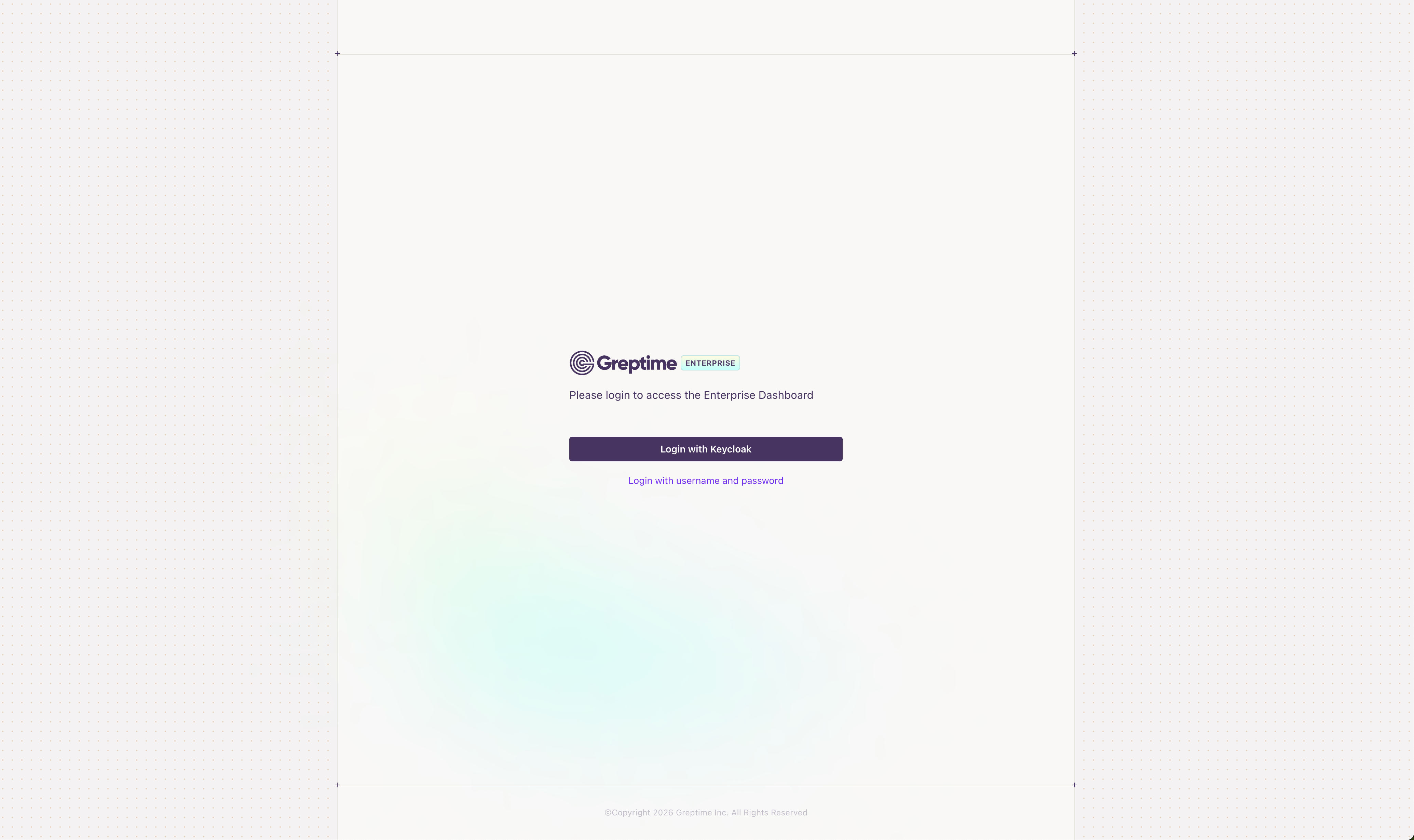
The screenshot below uses Keycloak as an example. The SSO button name follows
jwt_auth.display_name; the link below it switches to password login.
Password login is still available. Hiding its UI entry does not disable password authentication. Signing out or closing a tab does not revoke an access token; existing SQL connections may remain open after access is revoked in Okta.
Enable Session Renewal
If users should stay signed in when their access token expires, enable the
Okta app's Refresh Token grant and add offline_access to the scopes in the
same plugin:
jwt_auth.scopes = ["openid", "profile", "email", "offline_access"]
Without a refresh token, or if renewal fails, users must sign in again.
Programmatic and SQL Clients
Use an access token, not an ID token, with these clients:
| Protocol | Usage |
|---|---|
| HTTP | Send Authorization: Bearer <access_token> or x-greptime-auth: Bearer <access_token>. |
| MySQL | Use username * and the access token as the password. Enable mysql_clear_password, for example with mysql --enable-cleartext-plugin, and use TLS. |
| PostgreSQL | Use username * and the access token as the password, and use TLS. |
| gRPC | Use username/password authentication; token authentication is not supported. |
Any proxy must preserve the Bearer authentication header. Never share tokens, passwords, or client secrets in logs, screenshots, or support requests.
Troubleshooting
| Symptom | Check |
|---|---|
| Only password login appears | Confirm that Dashboard and GreptimeDB support SSO, the instance points to the correct Frontend, and every Frontend has restarted with the issuer and client ID configured. |
| Okta redirects fail | Check the SPA application type, Client authentication = None, user assignment, exact callback URI, Trusted Origins, and HTTPS certificates. |
| Login is rejected | Check the application's username mapping and matching database user, or enable restricted automatic provisioning. Also check token expiry and connectivity to Okta. |
| Login succeeds but queries are denied | Review the user's privileges and database/table ACLs. Do not grant Admin merely to bypass an expected denial. |
| Users must sign in again after token expiry | Enable Refresh Token grant and request offline_access if session renewal is required. |
Only one identity provider is supported by this configuration. Do not assume that other OIDC providers support the same setup. Keep TLS verification enabled when troubleshooting connection or certificate issues.